Development Debugging
To enable development debugging, check the "Debug Mode" option and click "Preview". A debug button will appear in the lower right corner of the preview window - click it to start debugging. 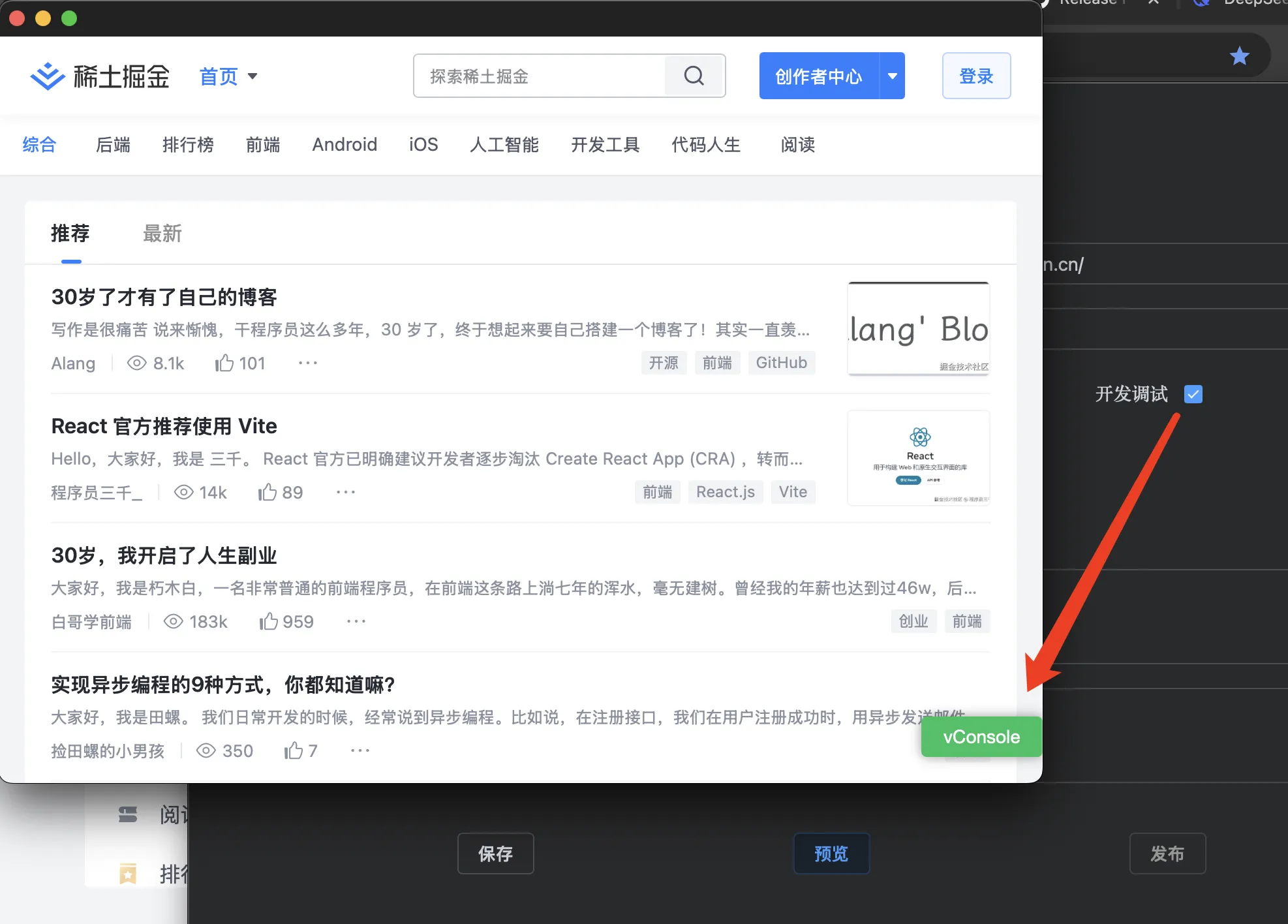
Release Modes
When publishing, you can choose between:
- Release Mode (Debug disabled) - For production use
- Debug Mode - Generates a debuggable version where right-clicking reveals "Inspect" options (identical to browser devtools)
Use debug mode to diagnose issues like blank screens or runtime errors. For troubleshooting assistance, consult DeepSeek or ChatGPT.
CORS Configuration
Enabled by default. To disable cross-origin restrictions, add this browser argument:
bash
--disable-web-securityAdvanced Configuration (Caution: Expert Only)
Refer to Tauri2 Documentation for complete reference. Key parameters:
| Parameter | Type | Description |
|---|---|---|
acceptFirstMouse | boolean | macOS click-through behavior for inactive windows |
additionalBrowserArgs | string | Windows-only extra browser arguments |
alwaysOnTop | boolean | Keep window above others |
backgroundColor | Color | Window/WebView background (alpha channel varies by OS) |
devtools | boolean | Enable browser devtools (requires flag in release builds) |
fullscreen | boolean | Launch in fullscreen mode |
transparent | boolean | Transparent window (macOS requires private-api flag) |
windowEffects | object | Advanced visual effects (requires transparency) |
Platform-specific notes:
- Windows: Certain effects require workarounds when using decorations
- Linux: Limited support for shadows/visual effects
- Mobile: Several features unavailable on iOS/Android
Warning: These are advanced nuclear options - modify only if you understand the consequences. Image paths updated to
../staticas requested.